Wednesday, 16 November 2011

How to Stay Safe Online

These days the internet is relied on by people all around the world, whether it is for business, finding information, to do their banking, or for their shopping. There are many benefits of the internet but, unfortunately, there is also a sinister side, with some attempting to gain at the expense of others. This can be through viruses, hacking into someone’s computer systems, phishing, or through social media. There are, though, certain things everyone can do to reduce the chances of them being taken advantage of. Besides you, your should also keep your kids safe online.

Anti-Virus Software and Firewall

Both anti-virus software and firewalls are needed to keep your computer safe. Contrary to the beliefs of some, they are not the same thing. A firewall blocks programs that are attempting to access your computer over a network, including the internet. Anti-Virus software, on the other hand, specifically blocks viruses. This will include viruses through emails and from things such as external drives. When anti-virus software detects a virus it removes it. In short, the job of a firewall is to block unauthorised access to the computer, while anti-virus software specifically attempts to spot viruses and prevent them from infecting the computer.

Passwords

One of the most common reasons people are hacked into is due to people guessing their passwords. For this reasons it is important to think carefully about passwords. For example, don’t use your name or date of birth, as this leaves you extremely susceptible of being hacked into. To limit the chances of someone guessing your password use long passwords and mix letters, numbers and other symbol. Passwords should be changed on a regular basis.

Emails

Don’t trust emails unless you know where they are from. This includes those that claim to be from banks or governments. Emails claiming to be from banks or government departments are some of the most common avenues used by criminals wishing to hack into computers. Banks and governments would not contact you in this way anyway. Importantly, do not open attachments in emails unless you know what they are and who they are from.

Don’t Disclose Private Information Online

Always think carefully before putting anything online. Don’t disclose information unless you are prepared for everyone to know about it. People often fail to think of the potential consequences of what they do online, especially on social networking sites. If you put something online you have to be prepared for anyone to find out about it, from your friends to your employers or possible future employers, and even criminals. You should never, for example, disclose your address or your whereabouts. If someone knows where you live and when you are on holiday, then they know when no-one will be home.

Online Shopping

While using the internet for shopping is another time when you need to be careful. In particular, there are two key things to make sure of when making online payments. The first is that the web address on payment pages begins with ‘https’ instead of the usual ‘http’. There should also be a lock symbol in the website address box. It is advisable to use common sense, for example don’t purchase through websites you have never heard of. Looking for contact details, such as a physical address and phone number, is also a good idea. Genuine businesses will supply these on their website. If in doubt, give them a call to see if anyone actually works there.

Common sense goes a long way when it comes to keeping you safe online. If something looks suspicious then you should assume it is and if something looks too good to be true then it may well be. You should take precautions such as using strong passwords and you shouldn’t say anything online that you wouldn’t tell everyone you know, and people you don’t know.

Thursday, 10 November 2011

How to make your man more romantic

If love was like it is in the movies then our lives would all be a whirlwind of intimate late night dinners, flowers delivered to work and surprise romantic weekends away. Unfortunately, in the real world you're lucky if your man remembers to buy a card for your anniversary.

We've all moaned about how our men aren't romantic enough but, as modern day women, if you want it you've got to go out and get it. But how do you do it?

clip_image001

Firstly, focus on the positive. Instead of concentrating on all the things that he doesn't do, look at what he does. Making you a cup of tea in the morning, buying you your favourite chocolate bar or putting your washing away may seem like mundane actions but they all show that he cares and wants to do nice things for you.
Romance doesn't have to be all flowers and expensive dinners, but about showing each other how much you care and spending quality time together.
It is easy to think that the man has to do all the work but when was the last time you made a romantic gesture? Lead by example and take the responsibility for a putting a bit of romance back into your relationship. Cook him a nice meal, run yourselves a candlelit bath or give him a backrub after a long day at work.
Victoria Lukats, psychiatrist and relationship expert for Parship.com says, "Romance is important as it keeps couples connected and shows your partner that you are thinking about them. Do romantic things for him but be careful not to suffocate him. Start off small."
You may be thinking it's all very well you doing all the work - but what about him? If you want your man to be more romantic you need to tell him. As much as we would like our men to know exactly what we want and deliver it without us having to ask, they are not mind readers.
"You need to find a way to communicate," says Victoria. "If you say ‘do this', it's not very romantic so you need to lead them by the hand. Don't be prescriptive but give them the chance to do it by themselves."
Try to find a trigger for the conversation such as a scene on TV or a story about your friends and use this to talk about your own relationship. Put the emphasis on you both as a couple and try to steer clear of giving him a lecture. Say, "Wouldn't it be nice if we did this," or, "I'd love to do... with you."
And remember, men's idea of romance is often very different to yours so don't be negative and criticise him when his gestures fail to live up to your expectations. Instead, be happy that he has made the effort and use it as a starting point for a romantic future.
Here are four steps to take towards turning your man into the one in the movies...
Tease him
Hints don't work very well with men but it is always worth a try. Leave this article up on your computer, talk about a friend's romantic partner or comment on a romantic scene on TV. All these things might give him some ideas but you are best off just telling him how you feel.
Tell him
Men aren't mind readers - much as we'd like them to be - so you need to tell them what you want. Don't make it confrontational but open up the conversation by asking what you could do to make him feel more wanted/loved/appreciated.
Teach him
The best way to get someone to change their behaviour is by setting an example of what you would like done. Do something romantic for him - that he would like not just what you want - and he will be more inspired to reciprocate.

Treat him

Everyone likes to be complimented so make sure your man knows how pleased you are when he makes romantic gesture. Don't overdo it but be genuine about your feelings and what it means to you.

Saturday, 3 September 2011

How to Prevent Google From Saving your Search & Web History not to Get Personalized Search Results

Nowadays almost everyone uses Google to find over the web. When you use Google to search something on web, Google stores your search terms and visited URLs. Why? Because Google uses these information to deliver more relevant,  recommended and personalized search results for further search. That means your past searches will reflect the results of new searches. Generally Google calls it “Web History“.

But if you don’t have enthusiasm on this or want to stop it for any reason, you can set Google not to do it and google will no more customize your new search results with search history or web activity.

Note: Even if you remove or disable web history, Google still sore them as log on their server for some days to analyze with those and make better service for their users.

When Google first introduced “Personalized Search”, it was only for logged in users with “Web History” turned on. In 2009, this was changed so that non logged in users would also benefited by “Personalized Search. This is achieved by storing cookies in your browser. Therefore if you do not want this data to be stored, clearing browser cookies of google can solve it.

So the process of removing or disabling web history involves different for logged-in and logged-out users. Instead of the procedure mentioned below,  web history setting can also be accessed from Google Dashboard which I’ve shared earlier. For signed-in users it’s called “Web History” and for signed-out users it’s only “Search History“.

#For Signed-in users

At the top-right corner of Google , click on the gear icon and select “Web History” from the drop-down menu (or you can access this page directly from https://www.google.com/history/). Google may ask for password for re-authentication.

google gear icon

Web History

Now if you want to remove certain or all history, then use “Remove” or “Remove All Web History“.

remove web history

To disable or Pause the web history function, simply click on “Pause“. You can enable it later by clicking on “resume”.

pause web history

#For Signed-Out users

When you’re not signed in, Google customizes your search experience based on past search information linked to your browser, using a cookie(already said above). Google stores up to 180 days of signed-out search activity linked to your browser’s cookie, including queries and results you click.

To disable it, use the Gear icon at the top-right corner or directly go to https://www.google.com/history/(same as for logged-in).

disable search historyDisable customizations based on search activity

Now click “Disable customizations based on search activity“. You are done. Hope it helps.

Prevent Certain Sites form Appearing in Google Search Results without any Browser Extension or Plugin

Block spam links in Google searchIf you use to search Google over the web very often, I’m sure that you’ve annoyed with many spammy websites which builds new pages for every keywords they find by their users. Then these sites makes these pages visible to search engines. When your google search term matches with their titles they come up in front of you (Though Google is always trying it’s best to deliver best links). That’s very irritating. whenever you browse into that site, you don’t get what we expected!

So you may need a system to personally block these types of junk sites.

Some months ago I’ve shared about a Google chrome extension called “Personal Block List” which is intended to do this task. If installed, a link “Block ***” will be shown with the every link in search result. The big advantage of it is you can use it instantly whenever you need it because it’s always visible with google search links and at the top-right corner of chrome. And disadvantage is it’s only for chrome.

But today while I was on preference page of google search, I found a way to block sites where you don’t need any extension. Because this system will use your Google account to store data. Advantage is you can use it for any browser. The main drawback is you cannot instantly access it as ‘personal block list’. You will always need to come to preferences page to add or remove sites.

Note: It’s only for logged-in users.

How to do it:

Click on the Gear icon at the top right corner of google then click “Search Settings” or directly go to http://www.google.com/preferences .

Search settings

Now at the bottom of the preference page, find-out the field “Blocked Sites“. Click on “Manage Blocked Sites“.

manage_blocked_sites

Now you add site links which you don’t want to get on search.

block sites

For example, I’ve added softonic.com which I really hate for it’s spammy behavior.

Thursday, 1 September 2011

15 Things Every PC User Should Know

1. Don't double-click everything. Windows 101: Double-clicking is how you open items in Windows. It's not how you open links in your Web browser, click buttons in dialog boxes, or do pretty much anything else--and if you reflexively double-click, you might accidentally zip right past something important or submit a form twice. If you don't need this reminder yourself, chances are you know someone who does.

2. Use slashes and backslashes in the appropriate situations. Let's get it straight: / is a slash (or forward slash, if you must), and \ is a backslash. Backslashes are conventionally used for Windows file paths (C:\Program Files\Whatever), while slashes are used for Internet addresses (http://www.pcworld.com/howto.html).

3. Record the exact error message. When your PC crashes, it'll usually try to tell you why it is doing so--albeit with a string of numbers and letters that you won't understand. Write the message down in its entirety (or take a screenshot, if possible) so you can later plug it into Google or give it to your tech support agent. If your PC didn't provide an error message, go to Action Center (in the Control Panel) and see if it shows up under 'View archived messages' or 'View problems to report'.

4. Bring deleted files back from the dead. When you delete a file from your PC or memory card, you're not wiping it off the actual hard drive. Instead, you're simply removing the index information that tells your PC where the file is, at which point the PC is free to treat the part of your disk that contain that file as empty space that it can write something else to. If you've accidentally deleted something, undelete utilities such as Recuva can help you find those files again as long as you haven't already written over that file with something new.

DBAN; click for full-size image.Don't leave your personal data on your old PC's hard drive. Nuke it completely with Darik's Boot and Nuke. 5. Wipe your hard drive before getting rid of it. Because your PC doesn't immediately get rid of the files you delete, you can't just reformat your hard drive before recycling or selling your old computer--because someone might be able to use an undelete app to recover your sensitive data. We have all kinds of tips for completely erasing an old drive, but the short version is: grab Darik's Boot and Nuke.

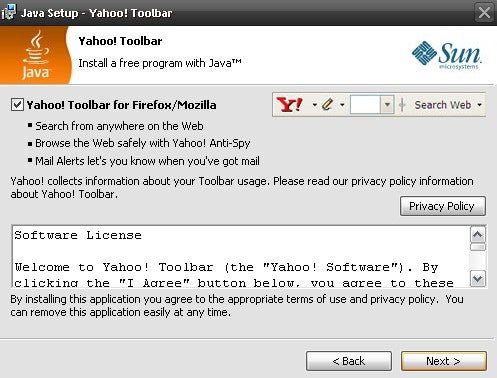
Uncheck the boxes; click for full-size image.Want a totally worthless toolbar added to your browser? No? Then uncheck the box for that option before you install updates. 6. Uncheck the boxes before you install. Lots of helpful apps out there give you the option of installing search toolbars and other add-ons--and some of them are so pushy about being helpful that their installers are configured to install the uninvited extras unless you check a box saying you don't want them. Not only is each add-on another thing that your PC needs to load, but you have no idea what kind of data it could be sending out. They come bundled with the app because they make money for the app developer, not because they're particularly useful. So take a close look at what you're installing before you click Install--and in return, the installer won't change your search engine or install apps you don't need.

7. Beware of viruses living in Office docs. Experienced Microsoft Office users can take advantage of its built-in Visual Basic for Applications support to automate complex tasks with macros. However, malicious coders can use those same tools to design viruses that may interfere with your work and that of your colleagues. By default, Office is set to disable all macros and notify you when a doc you're reading contains them (to toggle this setting, in Word, select Word Options, Trust Center, Trust Center Settings, Macro Settings), so you should already be safe on this score.

8. Be skeptical of "cleaning" apps. Apps that make vague claims about improving your PC's performance and clearing out its clutter (Registry cleaners, I'm looking at you) will generally do more harm than good (if they do anything at all). To clean up your system, simply run Disk Cleanup (to reach it, select Start Menu, All programs, Accessories, System Tools); it comes with every Windows installation and it won't mess up your PC.

9. Uninstall your old apps. If you regularly download and install new apps from the Internet, you should get in the habit of pruning your collection every now and then. To do so, open the Programs and Features control panel, scroll through the list, and click Uninstall to ditch items you no longer want. You may need to take a trip into your C:/Program Files/ folder to hunt down a few additional unused apps. The less stuff you have on your PC, the less things are to go wrong.

10. Don't let a spilled drink ruin your laptop. If you keep your cool when a spill occurs, you may be able to prevent your data from disappearing and your motherboard from frying. Instead of panicking, quickly but methodically unplug the power cord and yank out the battery--don't wait for Windows to power off. Next, detach anything connected to the PC (network cables, USB devices) and pull out any readily removable components such as an optical drive. Tilt the laptop to try to drain the liquid in the direction that it spilled onto your PC, but be careful--you don't want to tilt the laptop in a direction that would allow the liquid to seep even deeper in. If you see liquid on the surface of the laptop, dab it off with a towel. At this point, unless you're comfortable disassembling your PC and cleaning it with electronics cleaner, you'll probably want to take it to a tech.

11. Turn down UAC. Both Windows 7 and Windows Vista include a security function called User Account Control, which dims the screen and flashes a dialog box whenever you install an app or change your system settings. Though this arrangement can be useful for catching sneaky apps that are trying to install or change things without your knowledge, it can also be annoying. If you use Vista, grab TweakUAC to make it less annoying without turning it off. If you use Windows 7, the default settings aren't too bad, but I recommend that you go into the User Accounts control panel, click User Account Control settings, and change the setting to the third notch down, so UAC will still warn you but it won't dim the screen.

12. Don't work in your admin account. Many PC users are accustomed to doing their everyday work while logged in to their PC's administrator account--especially in Windows XP. Doing so can save you the hassle of having to log in and out when you want to install apps or make changes, but it also leaves you much more vulnerable to viruses and malware--so don't do it.

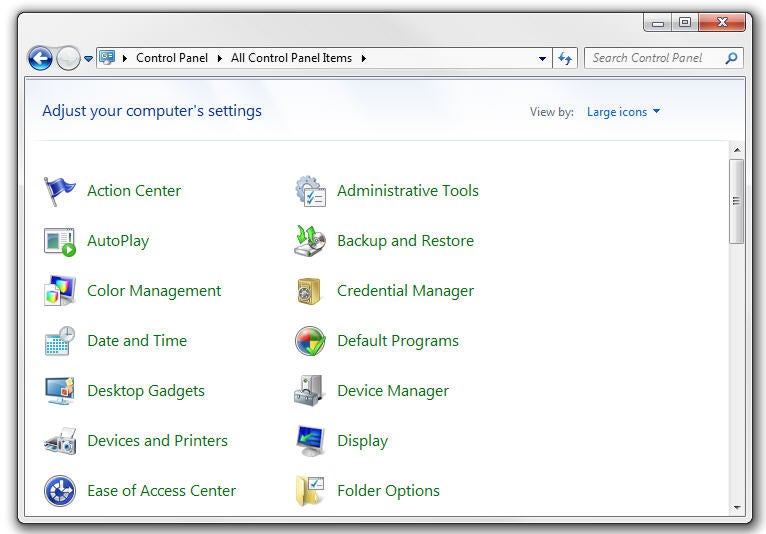
Icon View; click for full-size image.The Control Panel is far easier to navigate when you can see all the icons at a glance. 13. Keep your Control Panel in Icon View. The Control Panel's Categories view can be useful if you're intimidated by the many different options available, but it can also make finding what you're looking for more difficult (especially if you're following detailed instructions that refer to the control panels by name). Click Classic view on the left (in Vista) or choose Large Icons from the View by dropdown menu in the upper right (in Windows 7), and you'll have ready access to all of the control panels.

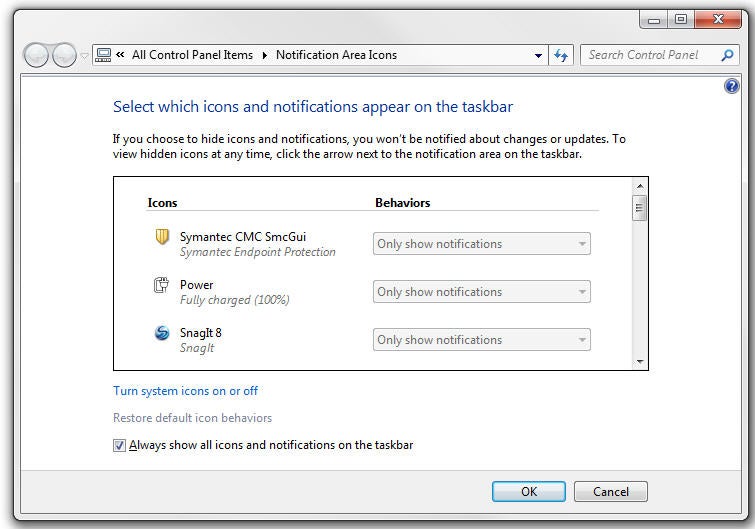
Notification Area Icons; click for full-size image.Limit the clutter in your system tray by paring down the list of icons that occupy it. 14. Clear your system tray. Apps often park themselves in the system tray (the row of icons on the right side of your taskbar) and stay open without your realizing it. Take the time to clear it out occasionally. Open the Notification Area Icons control panel, and check the box on the bottom that says Always show all icons and notifications on the taskbar to get a sense of how cluttered your system tray is; then right-click each one you don't need and choose Close. Your RAM will thank you.

15. Manage your power settings. If you're using a laptop, you'll want to know how to change your power settings so your PC doesn't waste battery when you need to conserve it, doesn't slow down when you need to go fast, and doesn't go to sleep at an inopportune moment. Open the Power Options control panel, and choose from among several presets containing different configurations for when you're plugged in and when you're mobile--or feel free to create your own. To access the advanced settings, click Change plan settings, Change advanced settings; there you'll find detailed options related to your battery, Wi-Fi radio, graphics card, and more.

32-Core CPUs From Intel and AMD

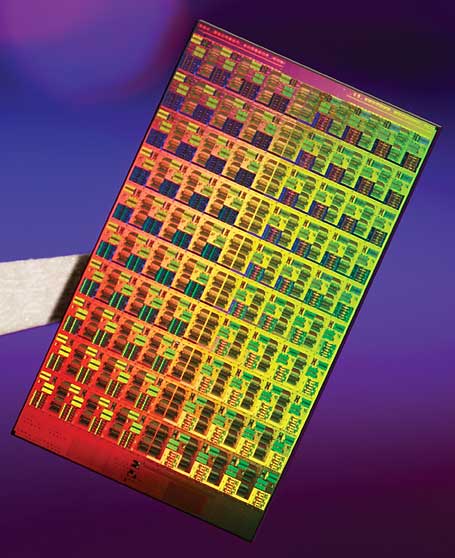
Click here to view full-size image.Photograph: Courtesy of IntelIf your CPU has only a single core, it's officially a dinosaur. In fact, quad-core computing is now commonplace; you can even get laptop computers with four cores today. But we're really just at the beginning of the core wars: Leadership in the CPU market will soon be decided by who has the most cores, not who has the fastest clock speed.

What is it? With the gigahertz race largely abandoned, both AMD and Intel are trying to pack more cores onto a die in order to continue to improve processing power and aid with multitasking operations. Miniaturizing chips further will be key to fitting these cores and other components into a limited space. Intel will roll out 32-nanometer processors (down from today's 45nm chips) in 2009.

When is it coming? Intel has been very good about sticking to its road map. A six-core CPU based on the Itanium design should be out imminently, when Intel then shifts focus to a brand-new architecture called Nehalem, to be marketed as Core i7. Core i7 will feature up to eight cores, with eight-core systems available in 2009 or 2010. (And an eight-core AMD project called Montreal is reportedly on tap for 2009.)

After that, the timeline gets fuzzy. Intel reportedly canceled a 32-core project called Keifer, slated for 2010, possibly because of its complexity (the company won't confirm this, though). That many cores requires a new way of dealing with memory; apparently you can't have 32 brains pulling out of one central pool of RAM. But we still expect cores to proliferate when the kinks are ironed out: 16 cores by 2011 or 2012 is plausible (when transistors are predicted to drop again in size to 22nm), with 32 cores by 2013 or 2014 easily within reach. Intel says "hundreds" of cores may come even farther down the line.

The Future of Your PC's Hardware Memristor: A Groundbreaking New Circuit

Click here to view full-size image.Photograph: Courtesy of HPSince the dawn of electronics, we've had only three types of circuit components--resistors, inductors, and capacitors. But in 1971, UC Berkeley researcher Leon Chua theorized the possibility of a fourth type of component, one that would be able to measure the flow of electric current: the memristor. Now, just 37 years later, Hewlett-Packard has built one.

What is it? As its name implies, the memristor can "remember" how much current has passed through it. And by alternating the amount of current that passes through it, a memristor can also become a one-element circuit component with unique properties. Most notably, it can save its electronic state even when the current is turned off, making it a great candidate to replace today's flash memory.

Memristors will theoretically be cheaper and far faster than flash memory, and allow far greater memory densities. They could also replace RAM chips as we know them, so that, after you turn off your computer, it will remember exactly what it was doing when you turn it back on, and return to work instantly. This lowering of cost and consolidating of components may lead to affordable, solid-state computers that fit in your pocket and run many times faster than today's PCs.

Someday the memristor could spawn a whole new type of computer, thanks to its ability to remember a range of electrical states rather than the simplistic "on" and "off" states that today's digital processors recognize. By working with a dynamic range of data states in an analog mode, memristor-based computers could be capable of far more complex tasks than just shuttling ones and zeroes around.

When is it coming? Researchers say that no real barrier prevents implementing the memristor in circuitry immediately. But it's up to the business side to push products through to commercial reality. Memristors made to replace flash memory (at a lower cost and lower power consumption) will likely appear first; HP's goal is to offer them by 2012. Beyond that, memristors will likely replace both DRAM and hard disks in the 2014-to-2016 time frame. As for memristor-based analog computers, that step may take 20-plus years.